
Need help?
Check out our most frequently asked questions or some of our helpful guides.
Why is my internet so slow?
There are lots of reasons why your internet may be running a little slow. Here are two fixes that help solve most issues:
Power Cycling
Power cycling is the best, easiest, and most common fix for spotty or no internet. To get started:
- Switch off your hardware
- Unplug the power cord from the back of your equipment
- Wait 30 seconds — just to make sure any left-over power is used up
- Plug everything back in and turn your hardware on
- Wait for everything to reconnect and get back online before you perform a speed test
Router location and distance
Your router's location can really impact how smooth or reliable your internet service is.
Make sure your router is in an open, central location and not blocked by furniture, walls, or other electronics. Things like baby monitors, microwaves, or even your neighbours' Wi-Fi can also interfere with the strength of your Wi-Fi, so try to avoid those disturbances wherever possible.
Have a device that's particularly important, like in a home office or gaming setup? Try to position your router closer to those key devices, then run speed tests in the rooms where having a good connection is important and adjust your router's location accordingly. Check our guide below for more tips on optimising your Wi-Fi setup.
How can I tell if I have an outage?
We're an honest bunch and will always try to let you know when there's an outage impacting your service.
You can find updates on outages in the nbn Network or Mobile pages. For historical outages visit here.
If you're having trouble getting back online after an outage, we suggest you perform a power cycle.
How can I optimise my Wi-Fi?
Here are some simple steps to get the most out of your Wi-Fi:
1. Location, location, location!
Where you place the router will heavily impact the quality of your internet connection.
Make sure your router is in a central position and that its signal can reach the rooms you need it to.
2. Open space
Keep your router in an open space and, away from anything that can interfere with the signal — think microwaves, electronics, brick walls, or baby monitors. Avoiding these obstructions will go a long way to ensuring you have a strong Wi-Fi signal.
3. Utilise the 2.4GHz and 5GHz channels
Most routers offer 2 channels: 2.4GHz and 5GHz. Here is an easy summary of their pros and cons.
2.4GHz
- Longer signal range.
- Better at going through objects, like walls or furniture.
- Prone to more congestion (as more devices tend to use 2.4GHz).
- Lower data rate (or speed).
5GHz
- Shorter signal range.
- Worse at going through objects.
- Less prone to congestion.
- Faster data rate (or speed).
Connecting different devices to different channels keep the congestion on each channel to a minimum.
For example, if you have a TV near the router, it's better to use the 5GHz channel and leave the 2.4GHz channel for devices at the other end of the house.
4. Check that your router can do what you're asking it to
Not all routers are made equal, and it's important to understand your household's needs when selecting a router.
If you have a large house with multiple levels or lots of solid brick walls that a signal needs to pass through, then a single router may not be able to reach every corner of the house. You may need to investigate a mesh router system with multiple points scattered around the house.
If you have a compact apartment, then one router will likely be enough.
Make sure your router is good enough to manage the number of devices using it. Having a 10-year-old router processing a family of 5 streaming and gaming is asking a lot. Think of it like upgrading your old hatchback that barely fits 3 people, to a new minivan that can easily take the family wherever you need to go.
5. Use an Ethernet cable
The best way to improve your speeds is to not use Wi-Fi at all! Instead, use an Ethernet cable to plug your device directly into your router. Your house may even have ethernet ports in different rooms, which will enable direct, speedy connections so long as you connect these ports to your router. This is recommended for functions that need smooth, high-speed connections, such as streaming video calls or online gaming.
What are the different NBN connection types and what do they mean?
As fibre broadband technology has rolled out across the country, Australia's found many ways to connect people to the internet. Knowing what connection type you have can help you understand what plan is right for you, troubleshoot issues, or even discover if you're due for an upgrade!
While you can check your connection type with our address checker, keep reading to become a bona fide expert of your own home internet.
Fibre to the Premises (FTTP or fibre)
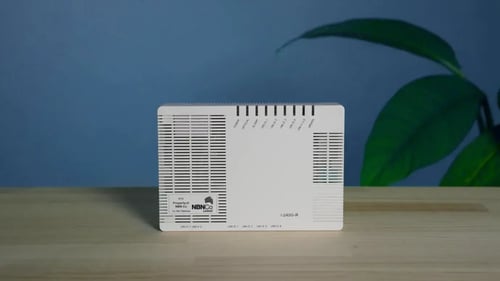
What: FTTP uses fibre cabling to connect your house directly to your closest Point of Interconnect (POI), which basically connects you to the rest of the world.
How to spot it: If you have FTTP, you'll find a white NBN connection box mounted on the wall, and you'll need to connect your router directly to this box with an ethernet cable.
Pros:
-
Fastest and most reliable connection type.
-
Can provide 'Foxy' speeds.
Cons:
-
This is not available to everyone throughout Australia yet and is more common in newer developments or homes.
Fibre to the Node (FTTN) and Fibre to the Building (FTTB)
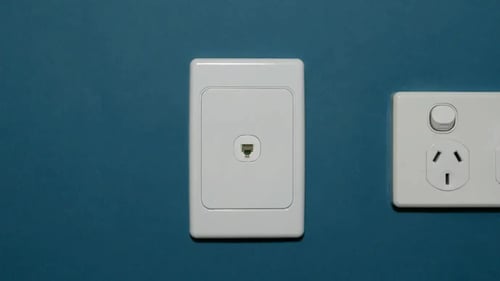
What: FTTN uses a fibre node in the street to connect your home to the wider NBN network. FTTB usually has this fibre node in the basement of your building. Your home is connected to the node through copper cabling.
How to spot it: FTTN or FTTB doesn't use an NBN connection box. Instead, your modem is directly plugged into a telephone (DSL) port in the wall by a telephone cable.
Pros:
-
No complicated cabling to an NBN connection box.
-
Can support most people's internet needs with up to 'Speedy' speeds.
Cons:
-
Maximum speeds can vary based on the quality of copper cabling and, how far away your home is from the fibre node.
-
Performance can be affected by the weather e.g. storms may cause water to soak into the line.
Hybrid Fibre Coaxial (HFC)
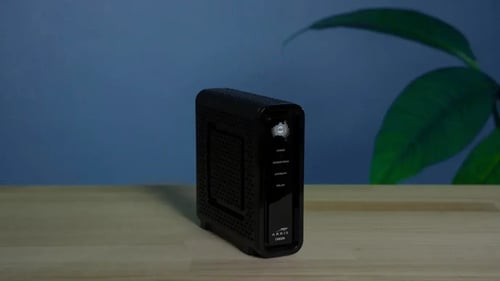
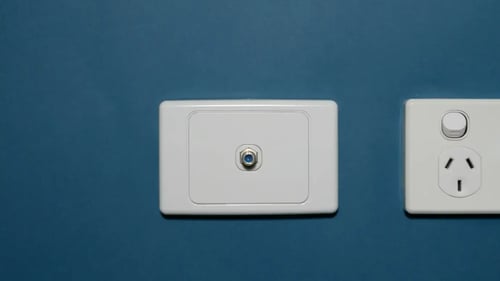
What: HFC uses pay TV cabling to connect your property to a nearby fibre node, then fibre optic cabling to the POI and the wider network.
How to spot it: HFC has a black NBN box that will plug into a coaxial (TV) plug in the wall. You'll need to plug your router into the back of the NBN box to connect.
Tip: Make sure the cable from the wall to the NBN box is tightly screwed in!
Pros:
-
Capable of 'Foxy' speeds.
Cons:
-
It's an older connection than FTTP, so the signal coming from the NBN box can occasionally be less reliable.
Fibre to the Curb (FTTC)
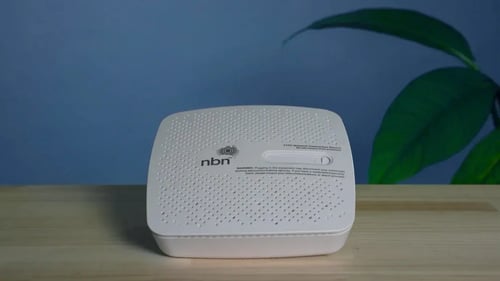
What: FTTC uses copper cabling from the property to the curb, then fibre optic cable from the curb to the POI.
How to spot it: FTTC uses an NBN Connection Device (NCD) that plugs into a telephone (DSL) port in your wall. The NCD also needs to plug directly into your router to connect.
Tip: The NCD uses two types of cable! Make sure you run a telephone cable from the NCD to the wall then, run an ethernet cable from the NCD to the router.
Pros:
-
Uses less copper than FTTN and FTTB, so it tends to be more reliable while offering 'Speedy' speeds.
Cons:
-
Like FTTN or FTTB, the service can be affected by weather.
We hope you've learned a bit more about how your home is connected to the NBN and why it matters!
How do I close my service?
Can I change my plan?
You can pick a different plan and decide whether you want the plan change to kick in now or after your next invoice. Send us an email with your request.
Remember, if you're upgrading your plan mid-month, you'll be charged the additional cost of the new plan. If you're choosing a lower plan, the new price will kick in at your next invoice.
Do I need to cancel my services with my previous provider?
What is my monthly billing cycle?
Your service will be automatically renewed each month unless you inform us you wish to cancel your service, or you transfer your number to a new provider If you cancel or transfer your service to another service provider, you will not receive a refund for any amounts that you have paid.
Service charges begin from the day you activate your SIM card.
If you activate on days 1-27, your first bill will be pro-rated from the date of connection for the current bill cycle, along with the month in advance. This means your first bill may be higher than your ongoing monthly plan fee. After the first month, your bill will revert to the regular monthly charge for your plan.
What should I do if I have no connection?
First thing's first, check if there's an outage currently affecting your service.
If your service is not affected by an outage, try giving your hardware a power cycle.
If that doesn't work, then you'll need to narrow down where the issue is coming from. The two most common culprits are either the NBN equipment or your own, e.g. cables or your router. Here are some things you can try to determine the cause of your issue.
For Fibre to the Node (FTTN) or Fibre to the Building (FTTB) connections
Check the lights of your modem.
If the DSL light is flashing or unlit:
-
Try running a spare DSL or phone cable from the wall socket to the modem.
-
Plug the modem into any other phone or DSL ports you may have in the property.
If the DSL light is lit up and solid:
-
Check that your device settings match our recommended settings.
-
If the settings look good, then perform a power cycle.
-
If the problem persists, please reach out to our support through live chat.
For other connection types (FTTP, HFC, FTTC)
Check the lights on the NBN connection box are behaving normally:
HFC
-
The four lights should be lit up and solid.
FTTP
-
Power should be solid green.
-
Optical should be either flashing or solid green.
-
Alarm should be either off or solid green.
-
UNI-D should be any combination of flashing or solid and, yellow or green.
FTTC
-
Power should be solid blue.
-
Link should be solid blue.
-
DSL should be solid blue.
-
LAN should be flashing or solid blue.
If the lights don't match the above, you can give the NBN connection box a reset by pressing a pin or toothpick in the reset hole on the back for 10 seconds.
Note: If you have a FTTP connection, don't reset the NBN connection box and move on to the next step.
If you're still unsure where the issue may be coming from, you can unplug your router, and plug another device into the NBN box (like a spare router, or computer with an ethernet port). If it can't get a connection, the issue might not be your equipment.
If you're still not having any luck after trying these tips, you can call us on 1300 374 683 option 3 and raise a fault.
What are DrimTel's contact hours?
Our Perth-based live chat team is available Monday to Friday, 11am-7pm (WST). If you need help outside of these hours, our customer service chatbot offers a range of self-serve options. For technical support please call 1300 374 683 option 3.
You can also manage your account and service anytime using the myDrimTel portal.
What are DrimTel's cancellation terms?
No - DrimTel does not charge any cancellation fees nor require any minimum notice period to close your service. While we would be sad to see you go, we understand that life happens and we want to make the process of closing your service as simple as the rest of the DrimTel experience. If you cancel your service mid-cycle, we unfortunately offer no refunds.
Can I get a new router from DrimTel?
Yes! We offer the Netcomm NF71 which can seamlessly integrate with your DrimTel connection. Our Netcomm NF71 routers have a super simple setup — just plug in and get connected!
To purchase an Netcomm NF71 with DrimTel, you can select it as an add-on when getting a new DrimTel service.
What is an AVC ID?
An AVC ID (Access Virtual Circuit Identifier) is a unique 15-character code that identifies your nbn® connection. nbn requires all telcos to collect your AVC ID when you switch providers or take over an existing service. This helps protect your service from being transferred without your permission and ensures we connect the correct service, especially if there are multiple connections at your address.
If you are already with DrimTel, you can find your AVC ID on your monthly invoice. It is made up of the letters "AVC" followed by 12 digits, for example "AVC123456789000".
If you are with another provider, check your invoice or online account. It is usually listed near your service address.
If you need help finding your AVC ID, start a live chat.
How long will it take me to get connected?
Once we have your order, we'll do all the heavy lifting and start processing your order straight away!
Typically, we see services connect within the hour, but it can take up to 24 hours. We'll let you know (via email) once you're ready to go.
Where can I find important information about my service?
What can I do to prepare for connection?
-
Do NOT disconnect your current connection until your new DrimTel service is live and working.
-
Make sure your router is in a central and open location.
-
Check all your cables are plugged in the right place and fastened securely.
-
Ensure your router is up to date on any firmware or software updates.
Will my internet network name and password be the same?
Yes! Everything will stay the same.
You can find the SSID (network name) and security key (password) on the sticker underneath the router.
I have a Fibre to the Premises connection, do I need to change my cable connection port?
It depends! For Fibre to the Premises (FTTP) connections, your wall-mounted NBN Network Termination Device (NTD) will have 4 'UNI-D' ports numbered 1 to 4 on its underside. When your DrimTel service is activated, you'll need to plug your router into the correct port to connect. We'll tell you which port to connect to in an SMS once your NBN order is complete. It may be the same port you're already connected to, or a different one.
It's important you don't plug into DrimTel's NBN port before you're told your service is active — you don't want to be without internet while waiting for us to connect!
To connect your router to your NBN NTD:
-
Unclip the plastic case covering the NTD, with the 'UNI-D' ports located on the underside of the device.
-
Plug an ethernet cable into your correctly numbered 'UNI-D' port on the NTD.Note: Make sure you plug into a 'UNI-D' port, not one of the 'UNI-V' ports!
-
On your router, insert the other end of the ethernet cable into the port labelled 'WAN'. Check all plugs are secure, and power on both devices.
Router Setup Guides
With DrimTel you have a choice to BYO (Bring Your Own) router, or you may purchase one of our compatible routers when signing up online. Note that your BYO router will need to be compatible with the NBN network, and depending on the age or capability of your device may impact your experience.
Guides to some of the most frequently used routers:
Netcomm
-
Make sure your Netcomm is plugged into a power outlet and switched on.
-
FTTC, FTTP, and HFC connections: run an ethernet cable from the red 'WAN' port to the correct port on your NBN connection box:
FTTP: the UNI-D port as described in your onboarding email.
FTTC: the 'GATEWAY' port.
HFC: the 'UNI-D1' port.
FTTN and FTTB connections: run a phone cable from the grey 'DSL' port on the Netcomm to a phone port in the wall.
-
Connect your computer to the Wi-Fi network of the Netcomm device. You can find the Wi-Fi name and password on the sticker on the bottom of the device.
-
Open a web browser like Google Chrome or Firefox. Enter the code 192.168.20.1 in the web address bar and press enter.
-
A login page will appear. Enter the username and password on the sticker of the Netcomm device. This is different to the Wi-Fi name and password.
-
Click on RUN QUICK START WIZARD at the top of the page.
-
Select the following settings:
For FTTC, FTTP, and HFC connections:
INTERNET SERVICE: Ethernet WAN
CONNECTION TYPE: Dynamic IP
Leave the others as they are.
For FTTN and FTTB connections:
INTERNET SERVICE: VDSL
CONNECTION TYPE: Dynamic IP
Leave the others as they are.
-
Select Next.
-
Here, you can change the optional settings like the Wi-Fi password or time zone. Otherwise select Next until your reach the 'SUMMARY' page.
-
Select Finish.
-
Check for an internet connection.
General router setup (Other)
If you router isn't covered by one of our bespoke guides, here are some general steps to get you started. Alternatively, you can search “[Your device name] setup instructions” to find the manufacturer's guide.
-
Log in to your router.
There should be a sticker on your router with the IP address you need to log in to your router. For more information, check the router manufacturer's website.
-
For Fibre to the Node (FTTN) or Fibre to the Building (FTTB) customers, use the following settings:
DSL Mode/Interface Type: VDSL
Internet Connection Type: Dynamic or IPOE or DHCP
No VLAN ID
Enable SRA (where applicable)
No, my ISP does not require a username and password (where applicable)
Internet Provider (or ISP): Not Listed or Other (where applicable)
For Fibre to the Premise (FTTP), Fibre to the Curb (FTTC) and Hybrid Fibre Coaxial (HFC) customers, use the following settings:
DSL Mode/Interface Type: Ethernet WAN
Internet Connection Type: Dynamic or IPOE or DHCP
No VLAN ID
Obtain IP Address Automatically
Operation Mode: Wireless Router Mode (where applicable)
-
Leave any other settings not mentioned here as default.
-
Confirm and apply the changed settings.
-
Turn your hardware off and on again, then test your connection.
If you're still having issues, please refer to your router manufacturer's support page.